
Interactive Maps Guide
Interactive maps on princeedwardisland.ca feature a range of helpful tools and information. This guide highlights how to get the most out of the various features across the site’s maps. The following features appear on most princeedwardisland.ca maps.
Map Buttons
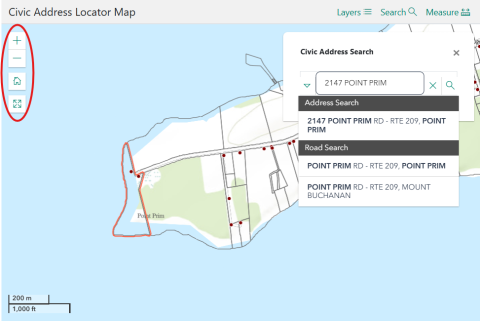
| Button Name | Description | Image |
| Zoom In/Out (+/-) | Allows users to zoom in and out of the map view |
|
| Home | Resets the map |
|
| Full Screen | Toggles the map to full screen mode |
|


Search
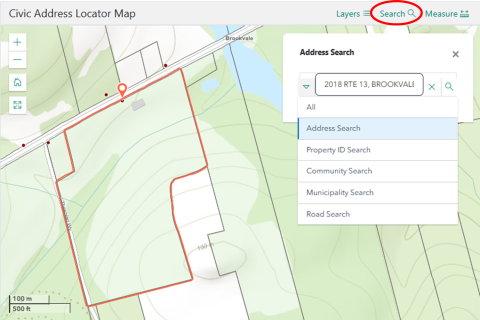
The Search feature allows users to search for PEI related location information. Searching by civic address is the default but some maps can be searched by:
• Property ID
• Municipality
• Community
• Road
- Click on Search.
- Enter the address in the Search field.
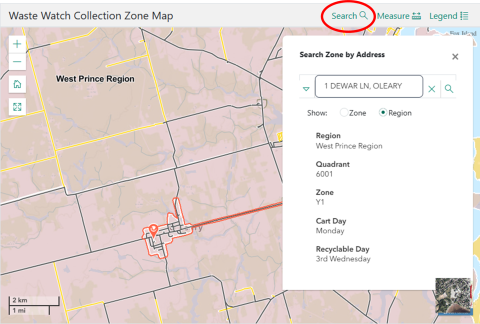
The Search function on the Waste Watch Collection Zone Map shows all the information required for waste and recycling collection.
- Click on Search.
- Enter the address in the Search field.
Layer List
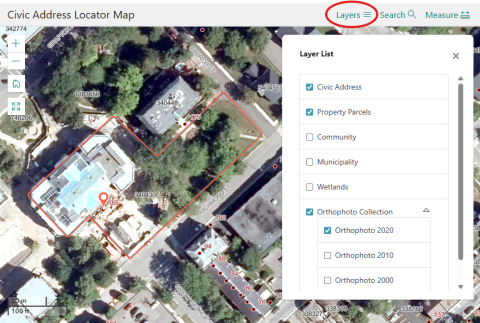
The Layer List feature overlays useful visual information over the map for the displayed region.
- Click on Layers.
- Click on the checkbox to toggle each layer on and off.
See the Civic Address Locator Map Layer List example below.
| Layer Name | Description | Image |
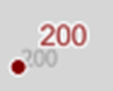
| Civic Address | Shows the civic address of properties |
|
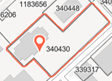
| Property Parcels | Shows the property boundaries and PID (property ID) of properties |
|
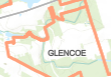
| Community | Shows community boundaries in PEI. Best viewed when zoomed out |
|
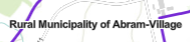
| Municipality | Shows municipality boundaries in PEI. Best viewed when zoomed out |
|
| Wetlands | Shows PEI wetlands |
|
| Orthophoto Collection | Displays aerial photography of PEI. Orthophotos are available from the years 2000, 2010 and 2020 |
|
Legend
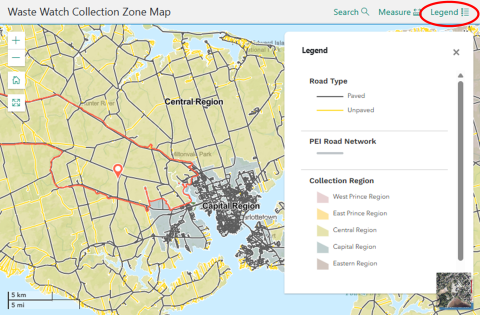
The Legend feature displays the meaning of symbols on the map.
See the Waste Watch Collection Zone Map Legend example below.
| Legend Name | Description | Image |
| Collection Region | Shows the following regions: West Prince, East Prince, Central, Capital or Eastern |
|
| Road Type (Paved/Unpaved) | Shows whether the road is paved or unpaved |
|
| PEI Road Network | Shows government maintained PEI roads |
|


Measurement Tools
These tools help users measure distance and area directly on the map.
Measure Distance
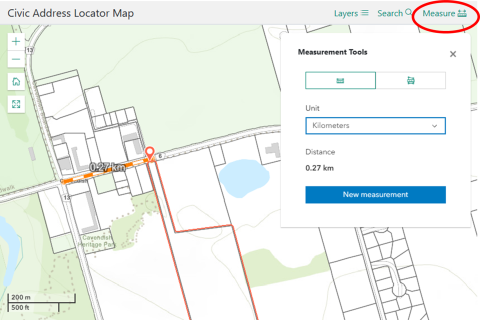
Use the Measure Distance tool to measure the distance between two or more points anywhere in PEI.
- Click on the Measure button.
- Choose Measure Distance.
- Select a unit (meters, kilometers, miles, etc.).
- Click New Measurement.
- Click the start and end points.
- Double click to end the measurement.
Measure Area
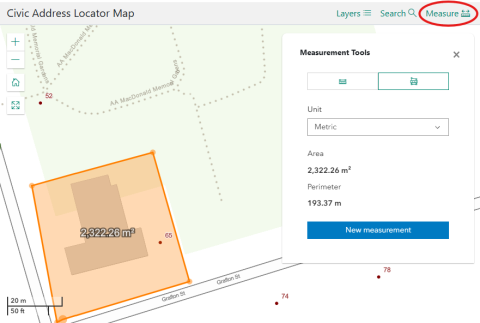
Use the Measure Area tool to measure the area of a land parcel and its perimeter.
- Click on the Measure button.
- Choose Measure Area.
- Select a unit from the dropdown menu (meters, acres, hectares, etc.).
- Click on New Measurement.
- Choose at least three points.
- Double click to end the measurement.